Fast accessAdd FlaminGo
Add FlaminGo
to your Home Screen
Open the portal like an app — one tap from your Home Screen, no searching for the link every time.
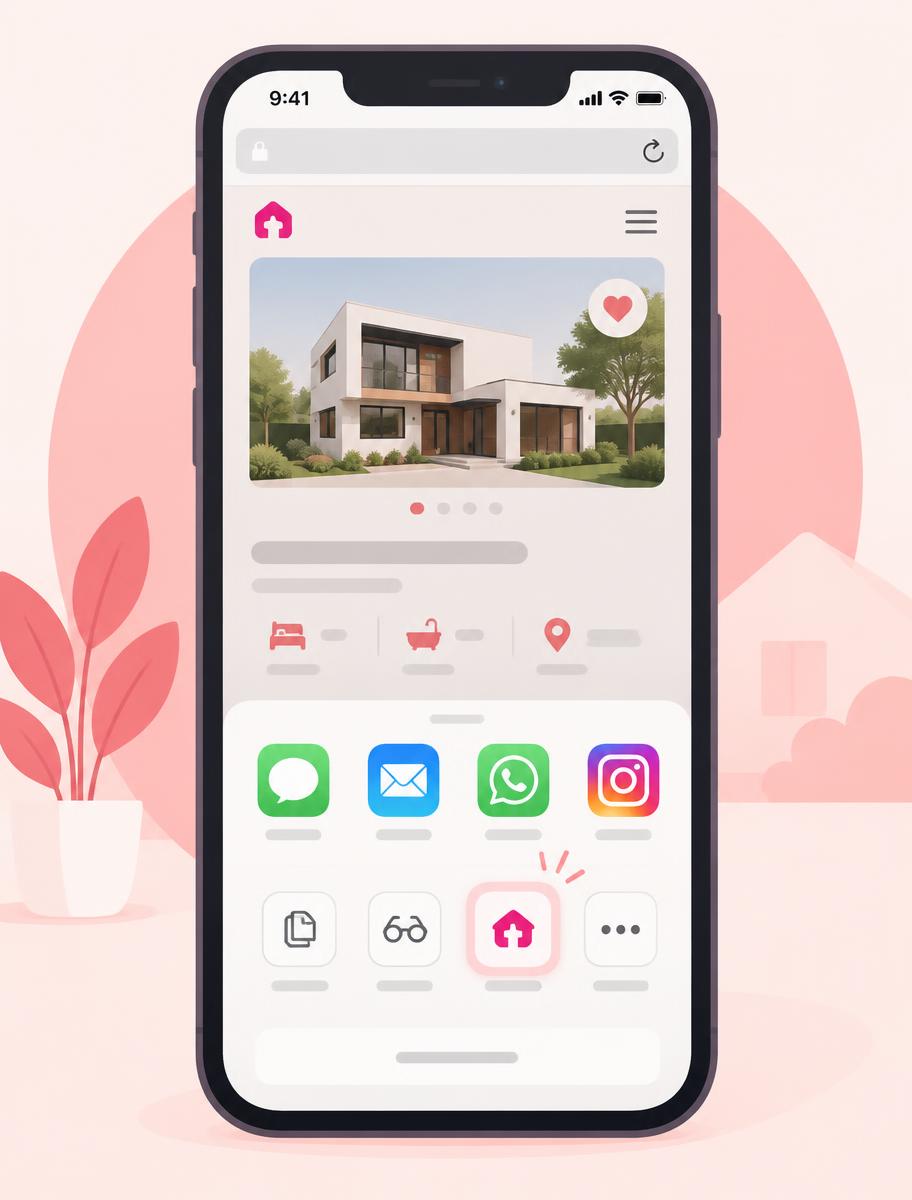
iPhone · Safari
- 1
Open agent.flamingo-h.co.il in the Safari browser.
- 2
Tap the Share button (the square with the arrow up) at the bottom of the screen.
- 3
Scroll down and choose “Add to Home Screen”.
- 4
Tap Add — the FlaminGo icon appears on your Home Screen.
This is done in Safari. If you browse in Chrome on iPhone, open the address in Safari and follow the steps here.
Why it's handy
The portal opens full-screen without a browser bar — just like a regular app.
You stay signed in, so you're back to your leads and listings in seconds.
Drag the icon to your main screen or into a folder like any other app.
Already added?
Sign in to the portal and get to work — your leads and listings are waiting.